Monday, February 25, 2019

Fix on iTunes not Detecting iPhone 2019


2 Update iTunes

Updating iTunes is a very simple process. All you need is getting the latest update from the official website of iTunes. You can also update iTunes from the app:


Step 1: Move to the menu bar and click on the Help button.

Step 2: Now click Check for Updates, after the latest version has been downloaded, install it on your computer.

After updating iTunes, connect your iPhone again and check if it is working or not.
3 Update Device Drivers

If your computer doesn’t have the latest device drivers, your iTunes won’t detect iPhone. Basically, when you connect your iPhone to your computer, it uses all the drivers which are installed on your computer. It doesn’t signify whether you are using iTunes or not, you will always need to have device drivers on your computer. Now the question is how to check if you have the latest version of device drivers on your computer. Here is how you can check the device drivers.


Step 1: First of all, connect your iPhone to your computer using a USB cable.

Step 2: Press Windows logo and R at the same time to open the Run app on your computer.

Step 3: Type "devmgmt.msc" in the case and click OK.Sponsor ads:iPhone/iPad Keeps Restarting? Here’s the Fix!

Step 4: Now under the "Universal Serial Bus controllers," check if you have Apple Mobile Device USB Drivers or not. If you don’t have these drivers, you will have to install them in order to connect your iPhone to the computer.
4 Reinstall iTunes

If none of the methods above is working for you, try to reinstall iTunes on your computer. You must completely remove iTunes first, to completely remove iTunes, you must uninstall the following applications:


iTunes Software


Quicktime


Apple Software Update


Apple Mobile Device Support


Bonjour


Apple Application Support Sponsor ads:Setup Dual Monitors in Windows 10 Computer 2019

Sponsor ads:Recover Deleted Video and Audio Files from Android Phone


Sponsor ads:Free File Recovery Software 2019 for Windows and Mac

Tuesday, February 19, 2019

10 Styles of IPhone Case: Red or Other color 2019


10 Styles of IPhone Case: Red or Other color
Style 1 Shannon

This is one of the best iPhone case you can ever see as far as iPhone is concerned. Shannon is one of the many glamorous iPhone cases by Ted Baker. It has one styled with a rose gold edging and a pinky metallic faux leather.

It is elegant and unique. It also has a screen protector which doubles as a mirror providing with extra ability to double check yourself before taking a snap.


Style 2 Leather Case

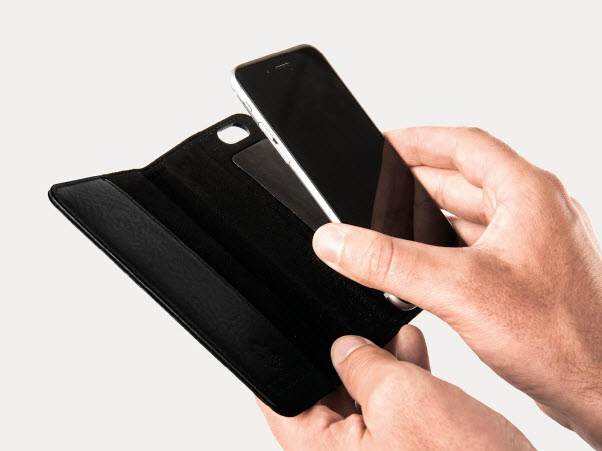
This is a style made by Apple designer responsible for the creation of iPhone 6. The leather case is also elegant and unique like the iPhone. Besides, it is sophisticated and it comes in about 5 different colors.


Style 3 Duo Tough Extreme

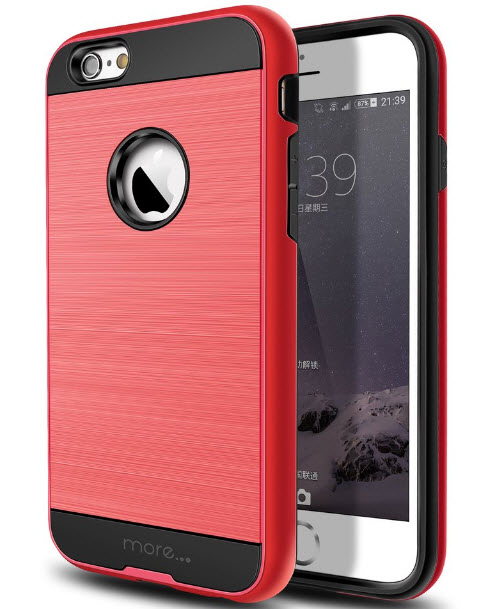
This is a super case that provides a deep sense of durability and style. It helps protect your screen in the sense that it edge gets to the floor before your screen. It is rugged and can be found in red color which could change the look of your device to red.


Style 4 Optrix Body Glove Pro

One good thing about this type of case is that it can protect your iPhone even at a point 10 meters below water. It has about four different lenses that help enhance the phone’s camera capabilities.


Style 5 Defender

This style is popular among many iPhone users because it comes with one of the toughest type of plastics that is capable of protecting your device from bumps and scraps. It is unique and elegant with very good aesthetics.Sponsor ads:

send anonymous text message from computer for free

Must Read:If you lost data after you updated to a new iPhone, you can always use Gihosoft iPhone Data Recovery to get the data back from the old iPhone or backup.

Gihosoft Free iPhone Data Recovery:iphonerecovery.com

If you use android phones, please choose Gihosoft Android Data Recovery


Style 6 Casetify

This is very stylish case for your iPhone. In fact, this style seems to be more appealing to the ladies who want something flashy to complement their device. It is elegant as well as unique and you will surely like the design.


Style 7 Access Case

This style is made of leather, in fact, from quality Italian leather. With this, you can mount your iPhone anywhere. It is uniquely designed by Nodus and it is just pure class.


Style 8 Neo Hybrid Ex

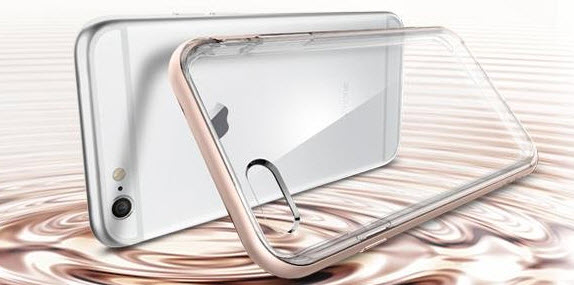
This is one of the best styles for your iPhone case by design. This is because it is designed to be a see through case. The implication is that you can protect your iPhone without actually comprising the look of your iPhone. It is unique, elegant and stylish.


Style 9 Supcase

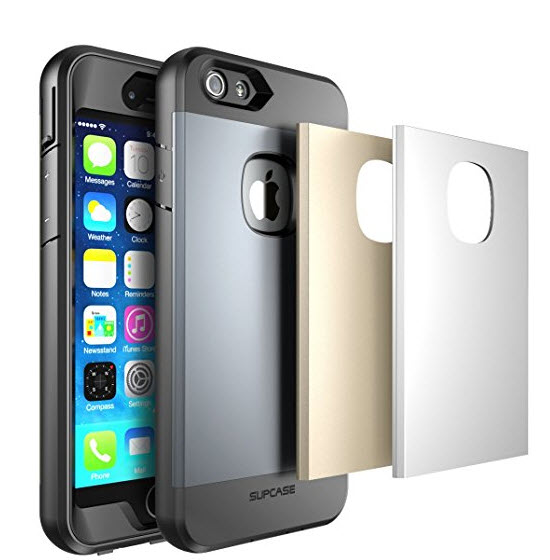
This is a full body protective case plus the added benefit of being full water resistant. It is popular among older iPhone users because it has some interchangeable back plates. However, it is classy and worth it.


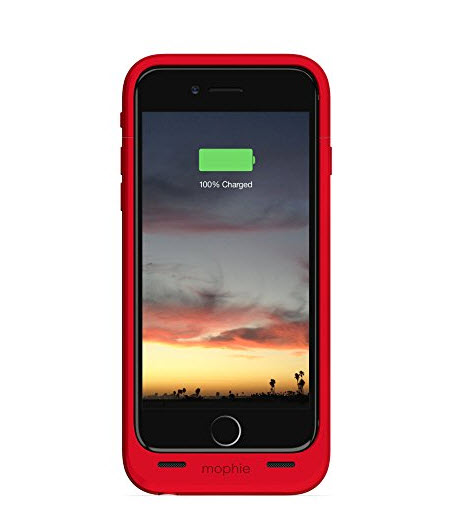
Style 10 Mophie Case

This style is unique in the sense that you can use it to recharge your phone on the go. It is one of the best styles available out there for your iPhone.


Monday, November 26, 2018

How to Enable or Disable Apps on Your iPhone Lock Screen 2019


How to Enable or Disable Apps on Your iPhone Lock Screen 2019

Enabling or Disabling the Apps

This feature resides in your Settings app, so pop it open and then follow these steps to get to the apps.


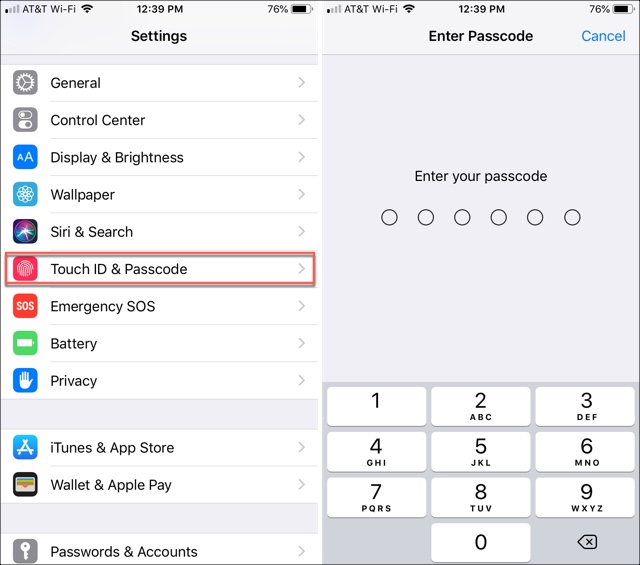
Scroll down to and tap Touch ID & Passcode.


Enter your passcode to access the settings.


Move to the near bottom of the screen to the section called Allow Access When Locked


Now, simply move the sliders to green for the apps you want and do the opposite for those you don’t.


The list of available apps includes:


Today View


Notification Center


Control Center


Siri


Reply with Message


Home Control


Wallet


Return Missed Calls


USB Accessories

When you finish, you can go back to your main Settings with the arrow at the top or just close the Settings app.
Conclusion

This very simple setting is one that you can use just for those apps you tend to need quickly. You don’t have to worry about unlocking your phone first to navigate where you want to go.

Sponsor ads:

Gihosoft Free iPhone Data Recovery:https://www.gihosoft.com/iphone-data-recovery-free.html

Gihosoft iPhone Data Recovery Free

Free iPhone Data Recovery Software for Windows/Mac

Recover up to 12+ types of files, including contacts, SMS, photos, WhatsApp, Viber, notes, etc.

Restore lost data from iOS devices directly or from iTunes and iCloud backup

Recover iPhone data lost due to iOS upgrade/jailbreak, accidental deletion, device lost or broken

Support all the latest iPhone, iPad and iPod Touch

Both Free and Pro version.

If you lost data after you updated to a new iPhone, you can always use Gihosoft iPhone Data Recovery to get the data back from the old iPhone or backup.You may also like: iphonerecovery.com

If you use android phones, please choose Gihosoft Android Data Recovery.

With Gihosoft Android Data Recovery, no longer afraid of data loss!

Worth reading:Best youtube downloader online download youtube 1080p

Friday, November 23, 2018

How to Fix Instagram Notifications Not Working on iOS 12

How to Fix Instagram Notifications Not Working on iOS 12


However, many people reported that they did not get any Instagram notifications on their iPhone. This issue usually occurs after iOS system update. Well, today we list 5 quick methods to fix Instagram notifications not working on iOS 12. In addition, these solutions also work for other versions of iOS on your iPhone or iPad.
Method 1: Simply Restart Your iOS Device


Restarting your iPhone or iPad is the simplest way to fix Instagram notifications not working on iOS 12. Just press and hold the power button until you see a message saying “Slide to Power Off”. Slide the slider from left to right to turn off your device and wait for a minute. Then press and hold the power button and release it once you see the Apple logo on your screen. If you can’t get Instagram notifications after restarting, move to the next method.
Method 2: Turn on Instagram Notifications


The common reason why Instagram notifications not working on your iOS devices is probably you turned Instagram Notifications off in Settings app. Now follow the guide to turn it on.


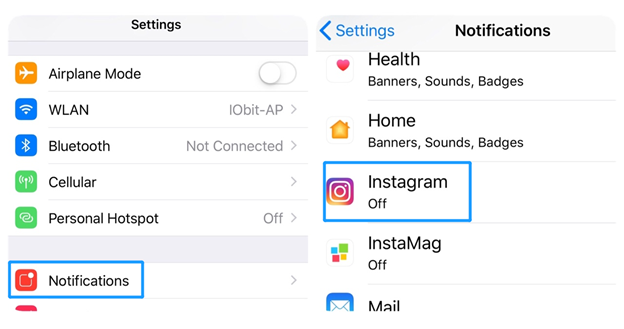
Step 1. Open Settings on your iPhone and go to “Notification” > “Instagram”.


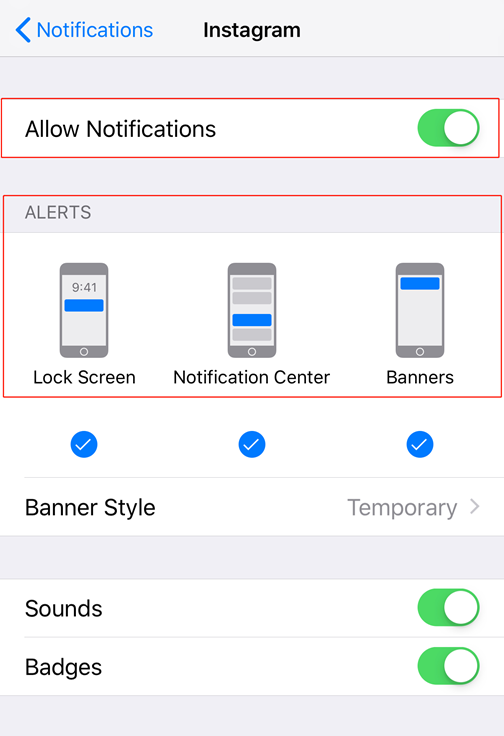
Step 2. Enable “Allow Notification” and then you can choose “Lock Screen”, “Notification Center” or “Banners” in “ALERTS” to show your notifications.


Step 3. Switch on “Sounds” so that you can identify the messages from Instagram.
Method 3. Reset Network Settings


If you still can’t fix Instagram notifications not working on iOS 12 after carrying out the above two methods, then you may need to check out the network settings. To solve this problem, you must ensure that there is a proper internet connection established on your device. This method also works with other issues, like No Service on iPhone XS After iOS 12 Update, iPhone Email Loads Slowly in iOS 12, etc.


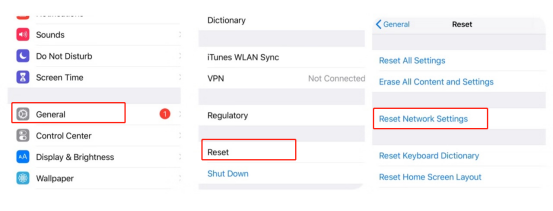
Just simply go to “Settings” > “General” > “Reset” > “Reset Network Settings”. This will delete all network settings including Wi-Fi networks, passwords, cellular settings, etc. returning them to factory defaults.


Method 4. Disable Do Not Disturb


After updating to iOS 12, you might turn on iPhone Do Not Disturb mode to avoid being distracting by the notifications. Then you will not get Instagram notifications. Now go to “Settings” > “Do Not Disturb” and then turn it off.


Method 5. Reinstall Instagram App


If you can’t fix Instagram notifications not working on iOS 12, try to reinstall Instagram to solve this issue. After the installation, you will see the popup messages which ask you to allow notifications for Instagram. Then click “Allow” button to see if it works.


Sponsor ads:


Gihosoft Free iPhone Data Recovery:https://www.gihosoft.com/iphone-data-recovery-free.html


Gihosoft iPhone Data Recovery Free


Free iPhone Data Recovery Software for Windows/Mac


Recover up to 12+ types of files, including contacts, SMS, photos, WhatsApp, Viber, notes, etc.


Restore lost data from iOS devices directly or from iTunes and iCloud backup


Recover iPhone data lost due to iOS upgrade/jailbreak, accidental deletion, device lost or broken


Support all the latest iPhone, iPad and iPod Touch


Both Free and Pro version.


If you lost data after you updated to a new iPhone, you can always use Gihosoft iPhone Data Recovery to get the data back from the old iPhone or backup.You may also like: iphonerecovery.com

If you use android phones, please choose Gihosoft Android Data Recovery.

With Gihosoft Android Data Recovery, no longer afraid of data loss!


Monday, June 11, 2018

Why I Can’t Delete Songs from iTunes

Why I Can’t Delete Songs from iTunes


Are you still wondering why iTunes won’t let you organize or delete your iPhone songs? Here are some of the reasons why you’re encountering this error:
iTunes may be automatically syncing your songs thereby not allowing you to erase your songs.
iTunes errors stemming from corrupt iTunes library or components may be the reason for iTunes not allowing you to erase content on your iPhone.
The songs you may be trying to delete via iTunes may have been purchased directly from iPhone. You can’t delete such songs using iTunes.


These are the major reasons why iTunes may be denying you the right to erase songs and other media files from iPhone.You may also like:
If you lost videos from iOS Camerall Roll which are nowhere to download again, you can use Jihosoft iPhone Data Recovery to get back deleted videos from iOS device including iPhone, iPad and iPod Touch.Please check jihosoft iphone data recovery

HOW TO UNLOCK THE IOS 12 WEATHER LOCK SCREEN WIDGET


HOW TO UNLOCK THE IOS 12 WEATHER LOCK SCREEN WIDGET
1. ENABLE LOCATION SERVICES FOR WEATHER


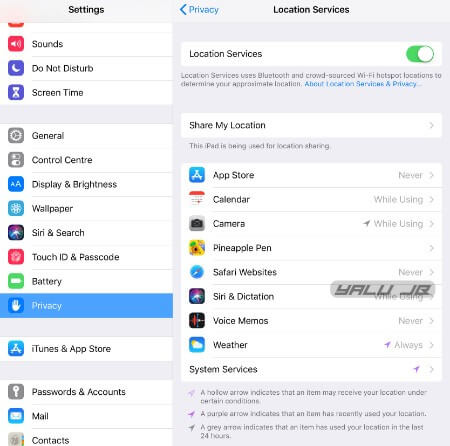
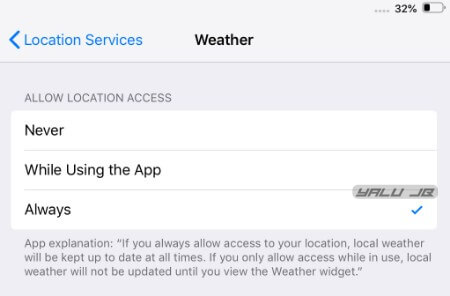
Step 1 Open the stock Settings app and go to Privacy > Location Services >Weather.


Step 2 Select Always. This will ensure the stock Weather service always has access to your location.


If you revoke or disable location access for this system service, the widget will not work because in that case, it won’t be able to display the weather conditions of your current location.
2. ENABLE BEDTIME MODE


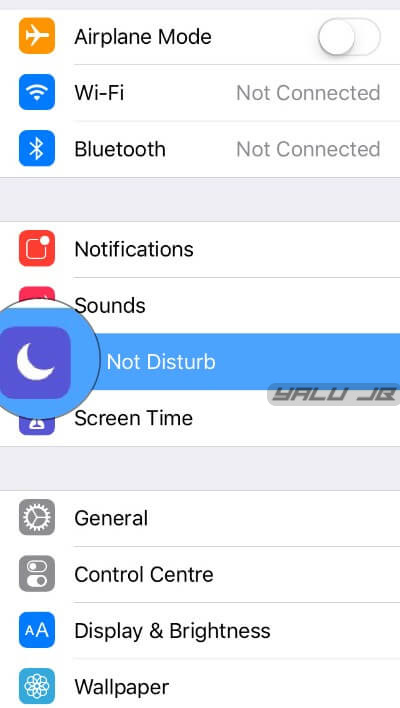
Step 3 Navigate to the Do Not Disturb section in Settings and toggle on DND mode.


Step 4 Schedule the “From” and “To” time according to your sleep time.


Step 5 Toggle on Bedside Mode.


You can check out our full guide on how to enable the Bedtime Do Not Disturb mode in iOS 12.
3. DISABLE BEDTIME MODE


This might seem a bit weird but you must disable the DND mode after enabling it.


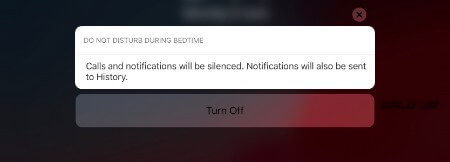
Step 6 Come back to your lock screen and long press or 3D Touch the DND notification present therein.


Step 7 Select Turn Off to disable Do Not Disturb Mode.


Alternatively, you can get your device to display this widget once the scheduled DND cycle ends.
WRAPPING UP


That’s all there’s to it! Your iPhone will now greet you with a “Good Morning” message along with your current weather conditions.


Hopefully, Apple will implement a “persistent” version of this amazing widget in the first public build of iOS 12 firmware.


Sponsor Ads:
Gihosoft iPhone Data Recovery is a professional iPhone Data Recovery software to get back all your lost text message, photo, video, call history, note, contact and more from iPhone/iPad/iPod Touch. It offers a full solution to recover your lost data in different tough situations. Besides recovering data directly from iPhone, iPad and iPod touch, it also allows you to recover data from iCloud and iTunes backup files. What's more, it supports Smart Recovery modes that can find your iPhone data quickly.https://www.gihosoft.com/iphone-data-recovery-free.html


How to Fix iPhone Recent Calls not Showing Up


How to Fix iPhone Recent Calls not Showing Up


If you notice that your recent calls are not showing on iPhone, here are the possible solutions.
A) Check storage, network, and time zone:
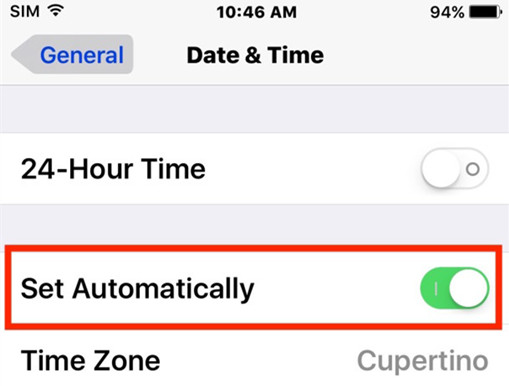
i. Let your date and time update automatically:


Make sure you have the latest version of iOS


Navigate to settings > General > Date and Time


Click on the time-zone and set it to the one that corresponds to your current location.


ii. Fix network issues:


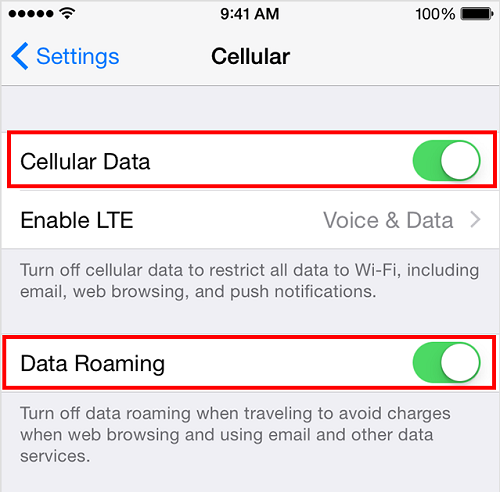
Make sure your cellular data is on by navigating to settings > cellular data


If you are traveling, switch on your data roaming at Settings > Cellular > Cellular Data Options > Data Roaming.


iii. Fix memory issue:


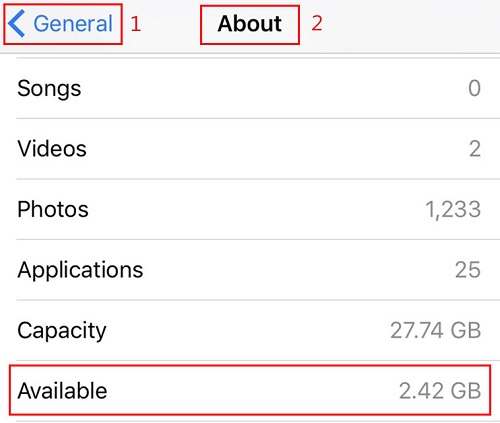
Navigate to Settings > General > About


Scroll down till you see the “available” option


Normally, the larger the available space, the better the condition of your iPhone.


B) Restart/Reset Your iPhone:


Another step to take when your iPhone 6 recent calls not logging is to restart your iPhone. If this doesn’t work, then you may need to reset your iPhone to default settings.
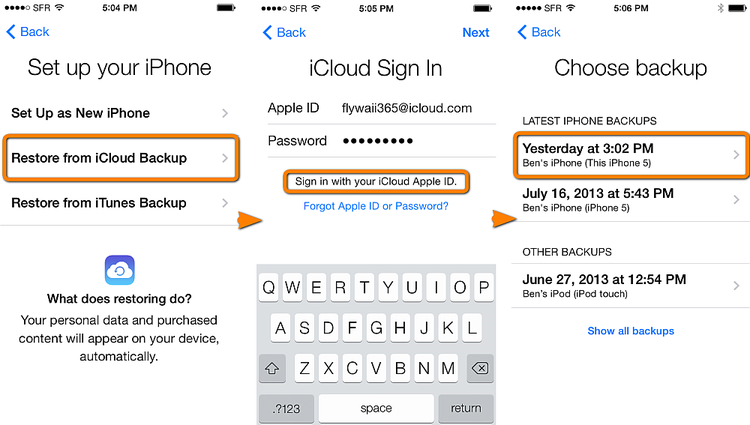
C) Backup from iCloud:


You also consider recovering your data from iCloud/iTunes. This will enable you to restore the data you have lost.


Go to Settings > General > Reset, then tap “Erase all content and settings.”


On the Apps & Data screen, tap Restore from iCloud Backup, then sign in to iCloud.


Proceed to “Choose backup,” then choose from a list of available backups in iCloud.


Do you like this story?


Sponsor Ads:
Gihosoft iPhone Data Recovery is a professional iPhone Data Recovery software to get back all your lost text message, photo, video, call history, note, contact and more from iPhone/iPad/iPod Touch. It offers a full solution to recover your lost data in different tough situations. Besides recovering data directly from iPhone, iPad and iPod touch, it also allows you to recover data from iCloud and iTunes backup files.

RAW Photo-Editing Software Keeps Your Photos High-Quality [Deals Hub]

Today’s technology is letting us capture moments in higher quality than ever before. But unfortunately, the photo editing software isn’t alw...